


HTML Overlay
Introduction
HTML overlay lets you render an animated HTML page — a lower-third, a subtitle box, an animated logo, or any other CSS-animated graphic — as a transparent video overlay, and composite it on top of your output. Instead of supplying a static image as your logo, you point to an HTML page and Qencode renders it into a transparent overlay for you, animation included.
This is useful any time a plain image logo isn't enough — for example, an animation that fades in, a scrolling ticker, or a styled subtitle card that only needs to appear for part of the video.
Adding an HTML overlay
HTML overlay can be created by adding an HTML page as the source of a logo entry within your format. In order to do this, use the /v1/start_encode2 API method to launch a transcoding job with a logo entry whose source param is set to the URL of your HTML page.
Request Example:
{
  "query": {
    "encoder_version": "2",
    "source": "YOUR_VIDEO_URL",
    "format": [
      {
        "output": "mp4",
        "destination": {
          "url": "YOUR_STORAGE_URL",
          "key": "YOUR_KEY",
          "secret": "YOUR_SECRET"
        },
        "duration": 5,
        "logo": [
          {
            "source": "https://nyc3.s3.qencode.com/qencode/overlay.html",
            "x": 20,
            "y": 20,
            "width": 320,
            "height": 200,
            "start_time": 1,
            "duration": 3
          }
        ]
      }
    ]
  }
}
In this example, the page at source is rendered as a 320x200 transparent overlay, positioned at coordinate (20;20) from the top-left corner of the video, appearing 1 second into the video and staying visible for 3 seconds.
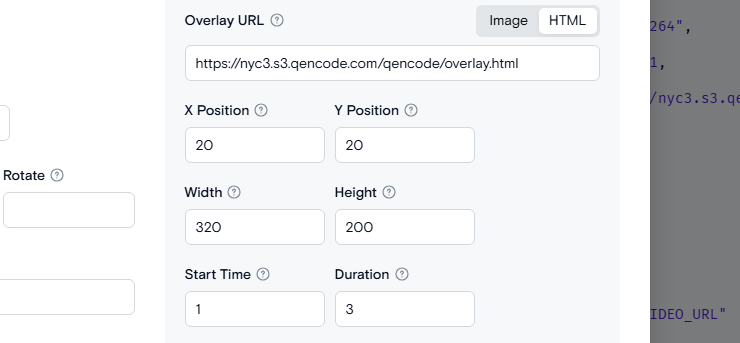
- In the Output Settings section, turn on Enable Watermark.
- Switch the toggle from Image to HTML.
- Enter the URL of your HTML page in the Watermark URL field.
- Enter X Position and Y Position to place the top-left corner of the overlay.
- Enter Width and Height for the overlay size.
- Enter Start Time and Duration to control when the overlay appears and how long it stays on screen.
Overlay fields
| Field | Requirement | Description |
|---|---|---|
| source | Required | URL of the overlay HTML page |
| width, height | Optional | Overlay size in pixels. Defaults to the output video size if omitted |
| x, y | Required | Position of the overlay's top-left corner, in pixels. Mutually exclusive with position |
| position | Optional | Anchors the overlay to a point in the frame instead of an explicit x/y. Mutually exclusive with x/y |
| opacity | Optional | Overlay opacity, from 0.0 to 1.0 |
| start_time | Optional | When the overlay appears on the video timeline, in seconds. Default 0 |
| duration | Optional | How long the overlay stays visible, in seconds. Defaults to the end of the video |
Positioning
The position allows placing a logo relative to the video area without manually specifying x and y coordinates. The position is calculated automatically based on the video size and logo size.
| Field | Requirement | Description |
|---|---|---|
| align | Required | Anchor point. Either a two-letter code (vertical t/c/b + horizontal l/c/r, e.g. tl, cc, br) or a full name (top_left, center, bottom_right, etc.) |
| margin_x | Optional | Horizontal margin in pixels. Applied only when anchored to a left or right edge; ignored when horizontally centered. Default 0 |
| margin_y | Optional | Vertical margin in pixels. Applied only when anchored to a top or bottom edge; ignored when vertically centered. Default 0 |
Available align values:
- tl / top_left
- tc / top_center
- tr / top_right
- cl / center_left
- cc / center
- cr / center_right
- bl / bottom_left
- bc / bottom_center
- br / bottom_right
Example — anchor a 400x100 overlay to the top-right corner, 20px in from each edge:
{
  "source": "https://nyc3.s3.qencode.com/qencode/overlay.html",
  "width": 400,
  "height": 100,
  "position": {
    "align": "top_right",
    "margin_x": 20,
    "margin_y": 20
  }
}
Need More Help?
For additional information, tutorials, or support, visit the Qencode Documentation page or contact Qencode Support at support@qencode.com.