


AI Upscaling
Introduction
AI Upscaling is a feature that increases the resolution of a video using AI-powered upscaling models, adding detail and clarity beyond what standard resizing can achieve. Qencode analyzes the source video and reconstructs it at your target resolution using one of three quality tiers, then continues the result through the rest of your encoding pipeline.

Enable AI Upscaling
AI Upscaling is enabled by adding ai_upscale: 1 to the output format in your transcoding job, along with a target width and/or height. Use the /v1/start_encode2 method to launch a transcoding job.
To select a quality tier, add the optional ai_upscale_mode parameter to the same format object.
Request Example
{
  "query": {
    "encoder_version": 2,
    "source": "YOUR_VIDEO_URL",
    "format": [
      {
        "output": "mp4",
        "ai_upscale": 1,
        "ai_upscale_mode": "standard",
        "width": 3840,
        "height": 2160,
        "destination": [
          {
            "url": "YOUR_STORAGE_URL",
            "key": "YOUR_KEY",
            "secret": "YOUR_SECRET"
          }
        ]
      }
    ]
  }
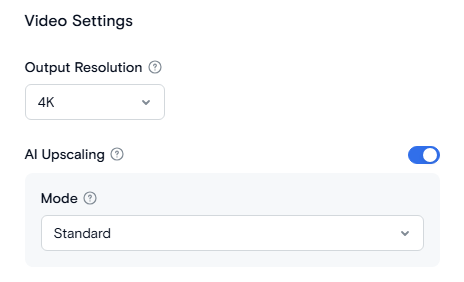
}- On the Transcode Media page, choose MP4, HLS, or MPEG-DASH as an output format.
- Open the Resolution Settings by clicking the Advanced Settings
- Set your target Resolution.
- Turn on the AI Upscaling toggle.
- Select a Mode to control quality and processing speed. Use Standard for general upscaling, Premium for low-light or noisy footage, or Max for the highest possible quality.
Output Settings
| Parameter | Description |
|---|---|
| ai_upscale | Enables or disables AI upscaling for an output format. Accepted values: 1 - to enable, 0 - to disable. Default: 0. |
| ai_upscale_mode | Quality tier used for upscaling. Options: standard, premium, max. Default: standard. |
| width / height | Target output dimensions. At least one of the two must be set when ai_upscale is enabled. |
Quality Modes
The Mode setting controls which upscaling model is used, balancing processing speed, footage type, and maximum output resolution.
- Standard - General-purpose upscaling with the fastest processing time. Output dimension is limited to 16384px on the longest side. Best for most footage where turnaround time matters.
- Premium - Tuned for low-light and noisy footage, producing cleaner results in challenging conditions. Output dimension is limited to 16384px on the longest side.
- Max - The highest available upscaling quality, at the cost of slower processing. Output resolution is limited to a total pixel count of 14,745,600 (equivalent to roughly 4K at a standard aspect ratio).
Video Limits
| Mode | Constraint |
|---|---|
| standard | Max dimension 16384px |
| premium | Max dimension 16384px |
| max | Total pixel count must not exceed 14,745,600 |
If your requested width and height exceed the limit for the selected mode, the job will fail validation before processing starts. Choose a lower resolution or switch to a mode with a higher limit.
Need More Help?
For additional information, tutorials, or support, visit the Qencode Documentation page or contact Qencode Support at support@qencode.com.